

Checking the currency and category of driver authorisation
On this page
Ensuring your drivers are properly authorised to provide the services that you offer
As a provider of public passenger services, you’re responsible for ensuring your drivers are properly authorised to provide the services that you offer.
The Driver authorisation public register is a free online service available to operators and the general public. It allows you to:
- check if a driver’s authorisation is current
- confirm the category of driver authorisation they hold.
For privacy reasons, the register does not disclose personal driver information or the reason why an authorisation may not be current. Common reasons a driver authorisation may not be current include:
- the driver's licence has been suspended, cancelled or disqualified
- the driver’s authorisation was not renewed before expiring
- the driver’s authorisation was suspended or cancelled due to criminal history or non-compliance.
Accessing the register
You can check a driver's authorisation status by visiting the register at Driver authorisation public register.
Using the register
A driver authorisation (DA) number is the same as the person’s Queensland driver licence number.
There are 2 ways to use the register:
- manually enter up to 5 DA numbers to check their status
- upload a CSV file with up to 10,000 DA numbers at once.
How to upload a CSV file to search the register
If you need to search for more than 5 drivers, you can upload a CSV file. Follow these steps:
- Prepare your CSV file:
- Create the file using an Excel spreadsheet.
- Ensure the file meets these requirements:
- It can have a maximum of two columns and must not include any headings.
- Column one must contain driver authorisation numbers only (up to 10,000).
- Column two is optional and can include reference details, such as the driver’s name. However, the register will only verify the driver authorisation numbers in column one.
- Save your file as a CSV:
- When your spreadsheet is ready, go to File, select Save As, and choose the file type 'CSV (Comma delimited)'.
- Save and exit. If prompted to confirm the format, select Yes.
- Keep this file handy for future checks.
- Upload your CSV file:
- When prompted, select 'Upload file' and attach your CSV file.
- Files not saved as CSV files cannot be uploaded.
- Complete the process:
- Once your file is uploaded, select 'Continue' to view the results.
Creating and saving a CSV file and adding driver authorisation (DA) numbers
Creating a new CSV file
- Open a new excel workbook by selecting ‘file’ then select ‘new’ then select ‘blank workbook’
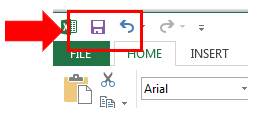
- Select ‘new’ and then ‘blank workbook’.

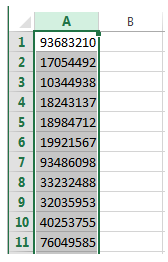
- Starting in cell A1 (column A; row 1) of your new workbook begin entering the DA numbers.
Note: Do not add a heading or commas in your spreadsheet. Column A must only contain DA numbers. Zeros at the beginning of the number will be removed by the spreadsheet. Please ensure that each number is at least 8 digits long.
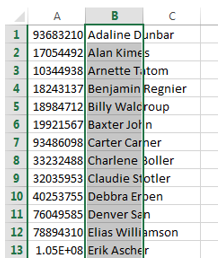
- Including the driver’s name in column B is optional; to assist matching the DA number with the driver. If you decide you don’t need to include the driver’s name skip this step and go to ‘Saving a CSV file’.
Note: Do not add a heading or commas in your spreadsheet. The DA register will not verify the driver’s name details in column B.
Saving a CSV file
- Now that your workbook is complete you need to save it in the CSV file format.
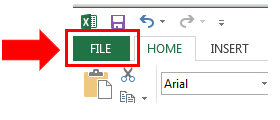
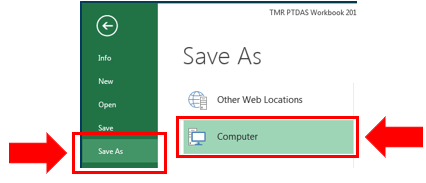
- Select Save As
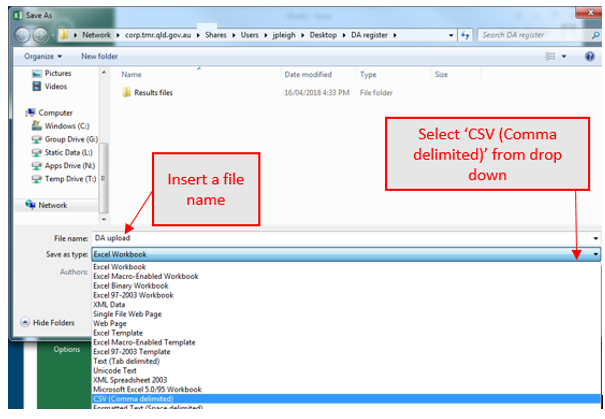
- Select where you wish to save your upload file and create a file name (you will need to locate this file each time you undertake a check in the future).
Change the ‘Save as type’ from ‘Excel Workbook’ to ‘CSV (Comma delimited)’
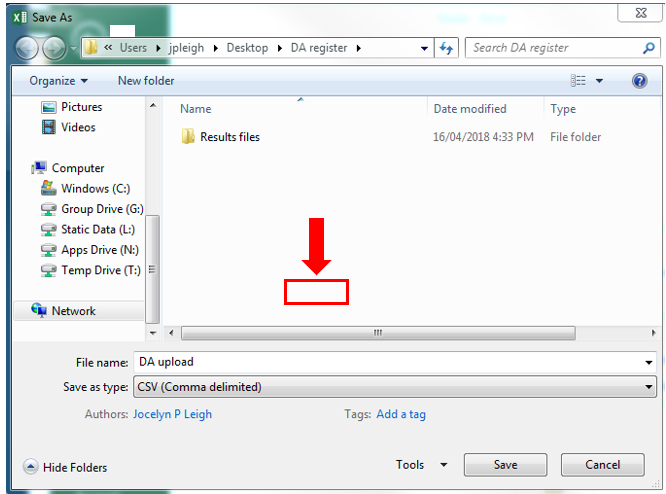
- Once you have selected ‘CSV (Comma delimited)’ select ‘Save’
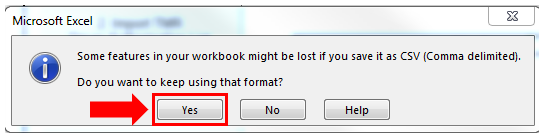
- If prompted with ‘Do you want to keep using that format?’ Select ‘Yes’
- Your CSV file is now ready to upload in the Driver Authorisation Public Register. Follow the prompts on the register to upload your file.
Saving your results from DA register.
- Once you have uploaded your file onto the DA register the results will be displayed as a link on the webpage labelled ‘Click here to export results to file’. Click on this link to download your results. This will generate the pop-up box asking if you wish to open or save the document. Select Open.

- When the excel spreadsheet opens you will need to save a copy. It is recommended that you save the results each time you perform the check and save it under the date the check was completed. Please do not save over the top of your upload CSV file as this will corrupt your results.

- Select Save As
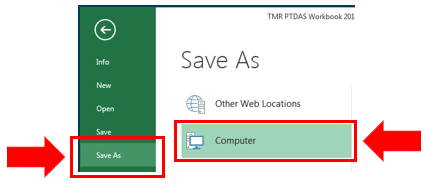
- Select where you wish to save your file and create a file name (it is recommended that you name the file after the date the check was undertaken).
Change the ‘Save as type’ from ‘Unicode Text’ to ‘Excel Workbook’
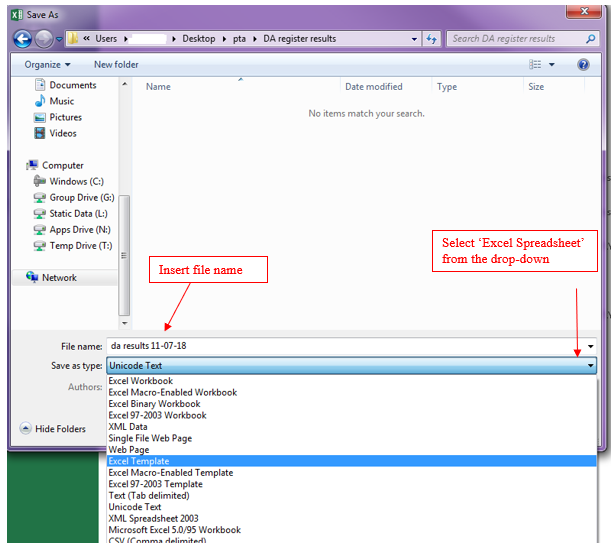
- Select Save As
- Your file is now saved and ready for review. Please ensure that you check the file for any DA that is not current.
References
Transport Operations (Passenger Transport) Act 1994
- Section 14 (e): Operator’s responsibility to comply with or ensure that a driver complies with an Act, or a provision of an Act, that would promote safety or customer service
- Section 24: Driver authorisation is an authorisation that authorises the holder of the authorisation to drive a vehicle to provide a public passenger service of a particular kind.
- Section 27A: Person must use drivers that hold driver authorisation
Read the full Act on the Queensland Legislation website.
Transport Operations (Passenger Transport) Regulation 2018
- Section 12: Grounds for amendment, suspension or cancellation.
Read the full Regulation on the Queensland Legislation website.
- Last updated
- 20 February 2026