

Enrolling
You only need to enrol for Inspection Certificates Online (ICO) once, regardless of the role that you have at the Approved Inspection Station (AIS), or if you change employers.
You can enrol as an approved examiner, approval holder, or both roles if you have been approved by TMR to perform those roles. You can add an additional role to your ICO profile later.
If you change the AIS where you work and can access the email address you enrolled with, you can login using this email address. You can then change your email address in ICO under Manage Profile.
If you cannot access the email you previously enrolled with, please email [email protected] to have your email updated.
- Open an internet browser (Google Chrome, Internet Explorer, Microsoft Edge, or Safari) and go to https://ico.tmr.qld.gov.au.
- The ICO login page will open.
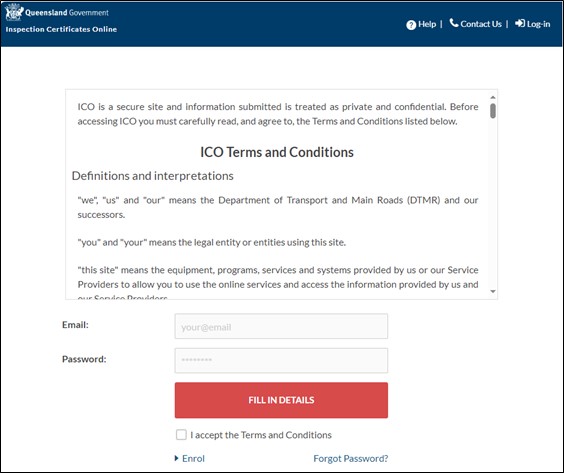
- If you haven't previously enrolled in ICO, click Enrol at the bottom left corner of the screen to begin the enrolment process.
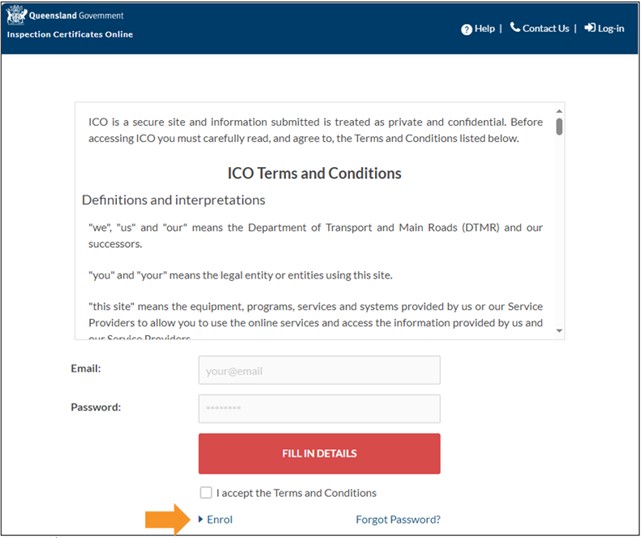
- Read the terms and conditions, and if you agree, click ACCEPT.
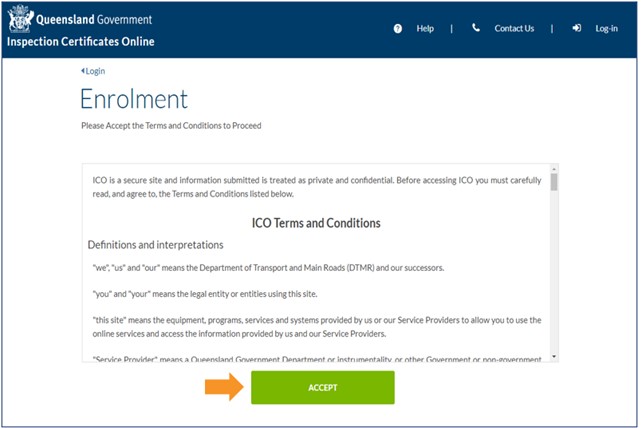
- In the enrolment screen, enter your personal details. Your name and date of birth must match the records held by TMR or you will not be able to enrol. If you are an approved examiner, your name will be displayed on the inspection certificates exactly as you enter it here.
- First name
- Surname
- Date of birth
- Email address
- Check the I am not a robot checkbox and click SUBMIT.
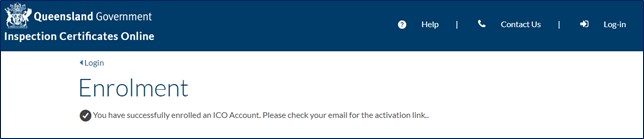
- Once you have entered all of the information correctly, an email will be sent from [email protected]. Check your spam or junk folder if you do not see the email.
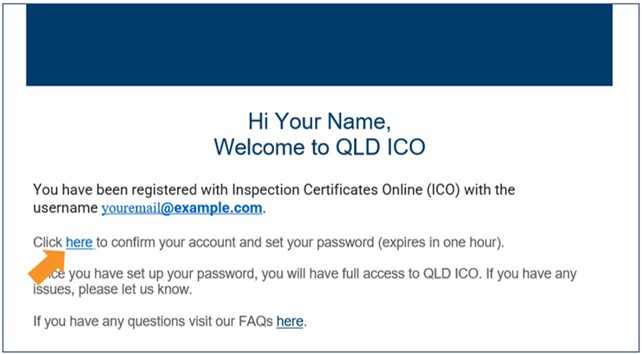
- Click the link in the email to set your password. The link will expire 1 hour from when the email is sent. If the link expires before you set your password, you will need to email [email protected] to request a new link.
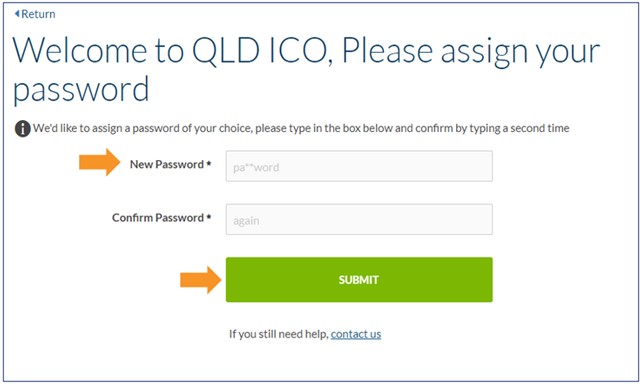
- You will be taken to the assign password page. Passwords must include:
- 10 characters or more
- an uppercase and lowercase letter
- a number
- a special character.
- Enter your password a second time to confirm and click SUBMIT.
- Once you have created your password, a pop-up will appear confirming the password has been reset. Click login to return to the login screen.

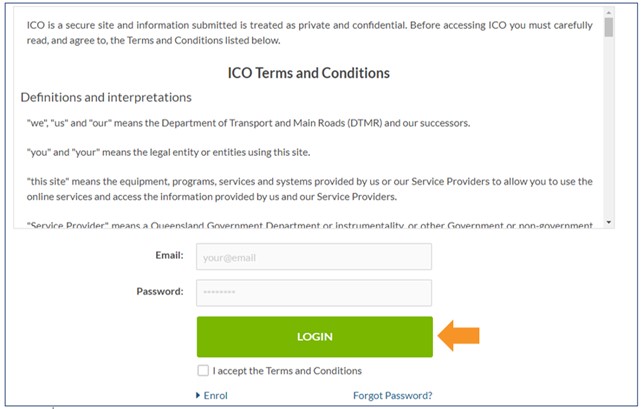
- You are returned to the login screen.
- Enter your email address and password.
- Read the terms and conditions, and if you agree, check the checkbox.
- Click LOGIN.
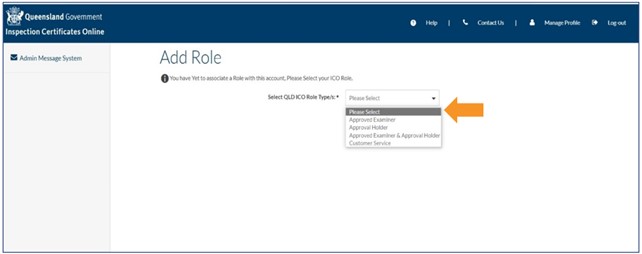
- You are taken to the Add Role screen. Use the drop-down list to select the ICO role(s) that TMR have approved you to perform.
- You can enrol as an Approved Examiner, Approval Holder, or Approved Examiner & Approval Holder, depending on your approval.
- If you enrol as one role only, you can add a role to your ICO profile later.
- The Customer Service role is for TMR staff only.
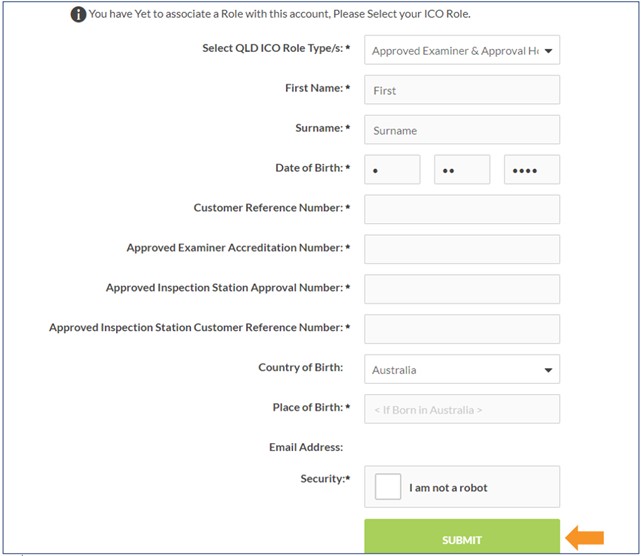
- To complete adding the role(s), enter the required details required for the role(s) you have selected. Most of the required information is available on your approval document issued by TMR.
- Check the I am not a robot checkbox and click SUBMIT.
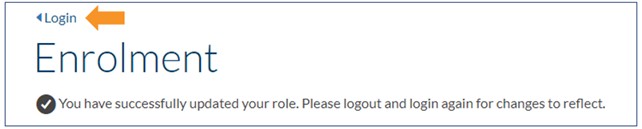
- After adding your role in ICO, a pop-up will appearing, confirming that you have successfully updated your profile.
- Click Login to return to the Login screen. You must log back in for the changes to take effect.
- Last updated
- 23 August 2024
Contact us
If you experience any issues, contact the help desk between 8:30am and 4:30pm, Monday to Friday.
| Email: | [email protected] |
|---|---|
| Phone: | 07 3066 2482 |
| Post: |
ICO Administrator Department of Transport and Main Roads PO Box 673 FORTITUDE VALLEY QLD 4006 |